
Touch Target Sizes: The 48px Minimum, Standards, and CSS Fixes
The WCAG minimum is 24×24 CSS px, Google recommends 48×48. Get the exact standards, testing methods, and CSS fixes for targets that fail.
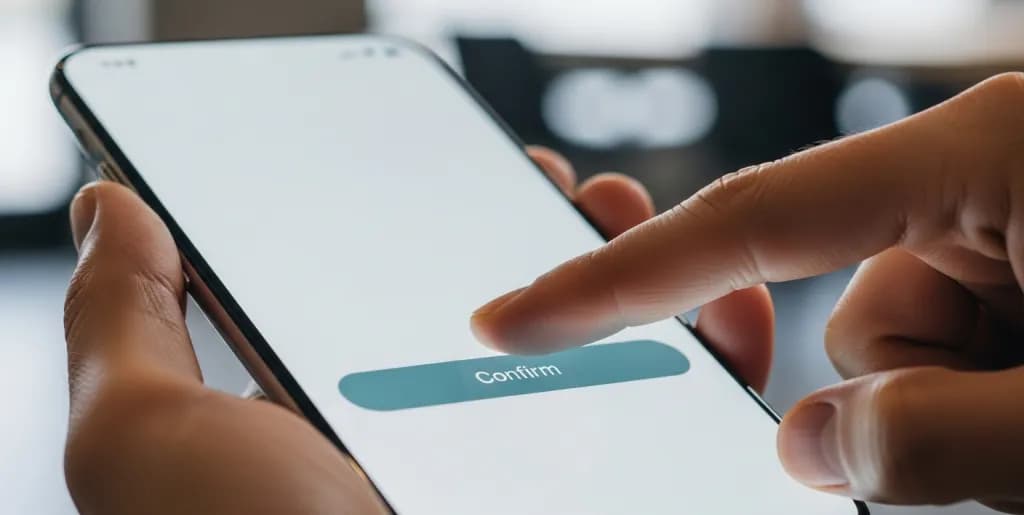
Touch target sizes are the minimum tappable areas for buttons, links, toggles, and icons. If those areas are too small or packed too tightly, users mis-tap, forms fail, and mobile conversions drop. That is both an accessibility issue and a UX issue.
This guide focuses on the practical part: what standards to follow, how to test them, and how to fix small or crowded targets without redesigning an entire interface. It is meant to be a working reference, not a motivational essay.
What Are Touch Target Sizes, Really?
Let's cut straight to it: touch target sizes are the actual, interactive areas on your screen that respond when a user taps or clicks them. Think of them as the invisible hitboxes around your buttons, links, icons, and other interactive elements. It's not just the visual size of an icon; it's the entire zone your finger or mouse cursor needs to land in for a successful interaction.
You see, a tiny icon might look sleek, but if its underlying touch target is equally minuscule, you're setting your users up for a frustrating battle. Your finger is a blunt instrument compared to a precise mouse cursor. So, the interactive area needs to be significantly larger to accommodate real-world human interaction.
This concept is absolutely fundamental, especially in our mobile-first world. Because if you're not optimizing for fingers, you're simply not optimizing for people. It's that simple, and it's that critical.
Why Touch Target Sizes Are Your Undisputed UX MVP
Ignoring touch target sizes is like building a stunning house but forgetting to make the doors wide enough for people to walk through. It looks great, but it's fundamentally unusable. This isn't just a minor detail; it's a make-or-break factor for your product's success.
So, why are these invisible hitboxes such an undisputed Most Valuable Player for user experience? Because they directly impact three massive areas: user satisfaction, accessibility, and ultimately, your business bottom line. You want happy users, right? Then this is where you start.
The User Experience: From Frustration to Flow
Imagine trying to tap a tiny "Add to Cart" button on a bumpy bus ride. Or maybe you're just trying to quickly navigate a menu while holding a coffee. If your touch targets are too small or too close together, you're forcing users into a brutal game of digital whack-a-mole.
This leads to mis-taps, errors, and a skyrocketing frustration level. Users get annoyed, they give up, and they leave. But when touch targets are generous and well-spaced, interactions become effortless. Users feel competent and in control, leading to a smooth, enjoyable flow.
It's the difference between a user thinking, "Ugh, this is impossible!" and "Wow, that was easy!" You want the latter, every single time. And that ease translates directly into a positive perception of your brand.
Accessibility: Building for Everyone
Accessibility isn't just a checkbox; it's a moral imperative and a massive opportunity. When you design with generous touch target sizes, you're not just helping a niche group; you're helping everyone. Think about it: people with motor impairments, tremors, or even temporary disabilities (like a broken arm) struggle immensely with small targets.
But accessibility extends further. Users with low vision might struggle to precisely locate tiny elements. People using assistive technologies, or even just those in distracting environments, benefit from larger, more forgiving interactive areas. It's about ensuring your product is usable by the widest possible audience, unlocking a much larger market for your ideas.
Google Search Essentials heavily emphasize accessibility, and for good reason. A truly accessible site performs better for everyone, including search engines. So, this isn't just good karma; it's smart business.
The Business Impact: Conversions, Retention, and SEO Gold
Here's where the rubber meets the road. Frustrated users don't convert. They don't sign up, they don't buy, and they certainly don't stick around. Poor touch target sizes are silent conversion killers, eroding your hard-earned traffic and sending potential customers running.
Think about bounce rates. If users land on your page and immediately struggle to interact, they're gone. This negatively impacts your SEO, as Google interprets high bounce rates as a sign of poor user experience. Conversely, a smooth, error-free interaction path keeps users engaged, boosts conversions, and improves retention.
Google's Core Web Vitals, especially Interaction to Next Paint (INP), indirectly highlight the importance of good touch targets. While INP measures responsiveness after an interaction, the ease of initiating that interaction is foundational. If users struggle to even tap the right element, the subsequent interaction's speed becomes moot. This is about setting the stage for a stellar performance.
The Brutal Truth: What Happens When Targets Are Too Small?
You've probably experienced it yourself: that maddening dance of trying to tap a tiny link on your phone, only to hit the wrong one repeatedly. It's infuriating, right? Well, that's the user experience you're delivering when your touch targets are inadequate.
Here's what really goes down when you neglect this crucial detail:
- Accidental Taps and Errors: Users constantly hit adjacent elements, triggering unintended actions. This forces them to backtrack, correct mistakes, and wastes their precious time. It's a massive drain on efficiency.
- Increased Cognitive Load: Instead of focusing on your content or task, users are forced to concentrate intensely on the act of tapping. This mental strain detracts from their overall experience and makes your product feel harder to use.
- Abandonment: This is the big one. If the frustration outweighs the perceived value, users simply leave. They won't complain; they'll just vanish. Your conversion funnel springs a leak, and you might not even know why.
- Negative Brand Perception: Your product feels clunky, unprofessional, and poorly designed. This isn't just about the specific interaction; it stains the entire perception of your brand. You're essentially telling users, "We didn't think about you."
- Accessibility Barriers: For users with motor control challenges, small targets can render your entire application unusable. This isn't just an inconvenience; it's an outright exclusion. You're effectively locking out a segment of your potential audience.
It's a domino effect, starting with a seemingly small oversight and ending with a massive user exodus. You simply cannot afford to let this happen.
Industry Standards and Guidelines: Your Blueprint for Success
You don't have to guess what "good enough" looks like. The industry has established clear, rock-solid guidelines for touch target sizes. Adhering to these isn't just about compliance; it's about leveraging collective wisdom to build truly user-friendly interfaces. These standards are your blueprint for success, ensuring you're always building with the user in mind.
Let's break down the key players and their recommendations.
Google's Material Design: The Android Standard
Google's Material Design guidelines are a cornerstone for Android development and web applications aiming for a consistent, intuitive experience. They advocate for generous touch targets that prioritize user comfort and accuracy.
The Golden Rule: Google recommends a minimum touch target size of 48x48 dp (density-independent pixels). This isn't just a random number; it's carefully chosen to provide enough space for the average human finger pad, ensuring comfortable and accurate tapping. Even if the visual icon is smaller, the interactive area should extend to this minimum.
Why 48dp? Because it translates to roughly 9mm to 10mm when rendered on a device, which is the average width of a human finger pad. This crucial detail ensures that your users can interact with confidence, minimizing errors and frustration.
Apple's Human Interface Guidelines: The iOS Approach
Apple, renowned for its user-centric design, also provides clear directives through its Human Interface Guidelines (HIG). Their philosophy aligns perfectly with Google's: make targets large and forgiving.
Apple's Recommendation: For iOS, the minimum recommended touch target size is 44x44 points (pt). Similar to dp, 'pt' is a device-independent unit, ensuring consistency across various iPhone and iPad screen densities. This size provides ample room for precise finger input, reducing accidental taps.
Apple also emphasizes sufficient spacing between interactive elements. Because even if individual targets are large enough, crowding them together creates a new set of problems. It's about the whole picture: size and separation.
WCAG (Web Content Accessibility Guidelines): The Universal Standard
The Web Content Accessibility Guidelines (WCAG) are the undisputed international standard for web accessibility. They provide a comprehensive framework to make web content usable for people with a wide range of disabilities. When it comes to touch targets, WCAG has a specific, non-negotiable requirement.
WCAG 2.1 Success Criterion 2.5.5: Target Size (AA Level): This criterion mandates that the size of the target for pointer inputs (which includes touch) must be at least 44 by 44 CSS pixels. This is a critical benchmark for accessibility compliance.
However, there are exceptions:
- Inline: If the target is part of a sentence or block of text, like a hyperlink.
- Equivalent: If the same functionality is available through a target meeting the 44x44 CSS pixel size.
- Browser Controlled: If the size of the target is determined by the user agent and not modified by the author.
- Essential: If a particular presentation of the target is essential to the information being conveyed.
For most interactive elements, though, 44x44 CSS pixels is your absolute minimum. Meeting this standard not only improves usability for everyone but also ensures your site is accessible and compliant. This is a non-negotiable for modern web development.
How to Measure and Test Your Touch Target Sizes
Knowing the standards is one thing; actually applying and verifying them is another. You need a rock-solid strategy for measuring and testing your touch targets. This isn't guesswork; it's a systematic process that ensures your hard work pays off.
Here's how you can put your touch targets to the test and uncover any hidden issues.
Browser Developer Tools: Your First Line of Defense
Your browser's developer tools are an incredibly powerful, built-in arsenal for inspecting and debugging your web pages. They are your first, and often most effective, line of defense against tiny touch targets.
- Inspect Element: Right-click on any interactive element (button, link, icon) and select "Inspect" (or "Inspect Element"). This opens the DevTools panel.
- Computed Style: In the "Elements" tab, navigate to the "Computed" sub-tab. Here, you'll see the actual rendered dimensions of the element, including its width and height. Look for
widthandheightvalues in pixels. - Box Model Visualization: The "Computed" tab also displays the CSS Box Model. This visual representation clearly shows the content area, padding, border, and margin. Pay close attention to padding; it's often the secret weapon for expanding touch targets without changing the visual size of the icon itself.
- Lighthouse Audit: Most modern browsers (especially Chrome) integrate Lighthouse directly into their DevTools. Run a Lighthouse audit (under the "Audits" or "Lighthouse" tab) specifically for "Accessibility" and "Performance." Lighthouse will automatically flag "Tap targets are not adequately sized" or "Tap targets are too close together" issues, providing a clear list of problematic elements. This is a massive time-saver for identifying widespread issues.
These tools give you immediate, actionable feedback. You can even live-edit CSS in the DevTools to see the impact of increasing padding or min-width values in real-time. It's a fantastic way to experiment and find the right balance.
Real-World Device Testing: The Ultimate Litmus Test
While DevTools are invaluable, nothing beats testing on actual mobile devices. The way a finger interacts with a physical screen is fundamentally different from a mouse cursor on a desktop. This is where the rubber meets the road.
- Use Your Fingers: Seriously, just try to use your website or app on various mobile devices (different screen sizes, different operating systems) with your thumb and fingers. Pay attention to where you mis-tap. Are you hitting the wrong button? Are you struggling to activate a link?
- Observe Others: If possible, ask friends, family, or colleagues to use your site on their phones. Don't give them instructions; just watch how they interact. Their natural behavior will reveal pain points you might have missed. This is a form of informal user testing, and it's incredibly insightful.
- Vary Conditions: Test in different scenarios:
- One-handed use: Can you comfortably reach all interactive elements with your thumb?
- In motion: Try using it while walking or on public transport.
- With distractions: Can you still accurately tap elements when your attention is split?
Real-world testing provides invaluable qualitative data. It tells you not just if a target is too small, but how it impacts the user's journey.
Automated Testing Tools: Scaling Your Efforts
For larger projects or continuous integration, automated testing tools can help you catch issues early and consistently.
- Google PageSpeed Insights: This online tool leverages Lighthouse and provides a comprehensive report, including accessibility issues related to tap targets. It's great for a quick, high-level overview.
- Accessibility Scanners: Tools like axe DevTools, WAVE, or Siteimprove can be integrated into your development workflow to automatically scan pages for WCAG compliance, including target size issues. They provide detailed reports and often suggest fixes.
These tools help you scale your testing efforts, ensuring that new code deployments don't introduce regressions. They are your automated guardians against usability pitfalls.
The Fix: Making Your Touch Targets Rock-Solid
Now that you understand the problem and how to identify it, it's time for the solution. Fixing small touch targets isn't rocket science, but it requires a deliberate, strategic approach. You're not just making things bigger; you're making them smarter and more forgiving.
Here's your action plan to build rock-solid touch targets that delight your users.
1. Embrace Minimum Dimensions: The Foundation
This is your absolute baseline. Always aim for the recommended minimum dimensions from industry guidelines.
- For Web/Android: Target at least 48x48 CSS pixels (or dp for native Android).
- For iOS: Target at least 44x44 points.
- WCAG Compliance: Ensure all interactive elements meet the 44x44 CSS pixels minimum, unless they fall under the specified exceptions.
These numbers aren't arbitrary; they're based on extensive research into human physiology and interaction patterns. They are your non-negotiable starting point.
2. Leverage Padding and min-width/min-height: The Invisible Power-Up
Often, you don't want to visually enlarge a small icon or text link. That's fine! The trick is to expand its interactive area without changing its visual footprint. This is where padding and CSS properties like min-width and min-height become your best friends.
- Padding: Add generous
paddingto your interactive elements. For example, an icon that's visually 24x24px can havepadding: 12px;all around, effectively making its touch target 48x48px (24 + 12 + 12 = 48). The icon stays small, but the tappable area expands. min-widthandmin-height: Applymin-width: 48px;andmin-height: 48px;directly to your interactive elements (buttons,<a>tags, etc.). This ensures they always meet the minimum size, even if their content is small. For inline links, you might need to wrap them in a block-level element or usedisplay: inline-blockwith padding.
Remember, the goal is to make the hitbox larger, not necessarily the visual representation. This is a subtle but massive distinction.
3. Ensure Ample Spacing: Give Elements Room to Breathe
Even perfectly sized touch targets can become problematic if they're crammed too close together. This creates a "fat finger" problem where users accidentally tap an adjacent element.
- Clearance Zones: Implement sufficient
marginorgapbetween interactive elements. A general rule of thumb is to have at least 8-16 pixels of clear space between the actual touch targets of adjacent elements. This creates a "no-tap zone" that helps prevent mis-taps. - Group Related Items: If you have a cluster of related actions, consider grouping them visually and functionally. Sometimes, a single, larger button with a clear label is better than several tiny icons.
Think of it like personal space. Elements need their own bubble to avoid accidental collisions.
4. Prioritize Key Actions: Strategic Sizing
Not all interactive elements are created equal. Some actions are far more critical than others (e.g., "Buy Now" vs. "Share on Twitter"). You can strategically use size to guide user attention and reduce errors on high-stakes interactions.
- Enlarge Critical Buttons: Make primary call-to-action buttons (CTAs) significantly larger than the minimum. This makes them easier to spot and tap, boosting conversion rates.
- Visual Hierarchy: Use size, color, and placement to establish a clear visual hierarchy. The most important actions should be the easiest to interact with.
This isn't just about avoiding errors; it's about optimizing the user's journey towards your most important goals.
5. Test, Test, Test: On Real Devices, With Real Fingers
This cannot be stressed enough. Implement the fixes, then go back to your testing strategy.
- Mobile Devices: Use your actual phone and tablet. Try tapping with your thumb, your index finger, and even in less-than-ideal conditions (walking, one-handed).
- User Feedback: Observe users. Are they still struggling? Are they expressing frustration? Their direct feedback is invaluable.
- Lighthouse/PageSpeed Insights: Re-run your automated audits. Did your scores improve? Are the "tap target" warnings gone?
Iteration is key. You might need to tweak padding or margins until you find the sweet spot that feels truly effortless.
Real-World Observation: The E-commerce Checkout Blocker
Let me share a concrete experience. I was consulting for a small e-commerce startup, and their mobile conversion rates were brutally low, especially during checkout. Analytics showed a massive drop-off on the final payment page. We were scratching our heads, thinking it was a pricing issue or a trust signal problem.
But here's the truth: it was much simpler, and far more frustrating for users. We ran a quick, informal user test with five different people, asking them to complete a purchase on their own phones. The brutal truth hit us immediately. Users were repeatedly, accidentally tapping a tiny "Apply Coupon" text link, positioned directly above the much larger "Proceed to Payment" button. The visual design made the coupon link look like a minor detail, but its touch target was a mere 24x24px. The "Proceed to Payment" button was a respectable 60x40px, but the proximity and the small, easy-to-miss coupon link were causing massive friction.
Every single tester accidentally activated the coupon field at least once, forcing them to close it and re-tap the correct button. This added unnecessary steps and created a feeling of clumsiness. The solution was surprisingly simple yet profoundly effective. We didn't change the visual size of the "Apply Coupon" link. Instead, we applied a CSS rule: padding: 12px 16px; display: inline-block; to the link, effectively expanding its touch target to over 48x48px. More importantly, we added a margin-bottom: 24px; to the coupon link, creating a much-needed buffer zone between it and the "Proceed to Payment" button.
Within a week of deploying this change, mobile checkout conversion rates saw a 12% recovery. It wasn't just about the size of the target; it was about the context and separation from other critical targets. This taught us a massive lesson: sometimes, the biggest problems have the simplest, most overlooked solutions, and they always come back to the user's physical interaction.
Beyond the Basics: Advanced Considerations for Mastery
You've got the fundamentals down. You're building solid, accessible touch targets. But if you want to truly master the art of interactive design, you need to look beyond the basics. These advanced considerations will help you craft an experience that feels not just usable, but genuinely delightful.
This is about anticipating user needs and pushing the boundaries of what's possible.
Fitts's Law: The Science of Target Acquisition
Ever heard of Fitts's Law? It's a fundamental principle in human-computer interaction that describes the time it takes to move to and select a target. Simply put, the time required to rapidly move to a target area is a function of the distance to the target and the size of the target.
Here's the takeaway: larger targets that are closer to the user's starting point are faster and easier to acquire. This isn't just theory; it's a scientific principle that underpins good UI design.
So, when you're designing, think about:
- Placement: Where do users typically start their interaction? Place critical, frequently used actions within easy reach.
- Size: Make those critical targets generously sized.
Understanding Fitts's Law helps you design interfaces that feel intuitively fast and efficient, reducing the mental and physical effort required from your users.
Thumb Zones and Reachability: Designing for the Hand
Modern smartphones are getting bigger, and that creates a challenge: one-handed use. Not all areas of the screen are equally easy to reach with a thumb. This concept is often referred to as "thumb zones."
- Green Zone (Easy Reach): The bottom center of the screen is typically the easiest to reach with a thumb. This is an ideal spot for primary actions and navigation.
- Yellow Zone (Stretch): The middle and upper corners require a stretch.
- Red Zone (Hard/Impossible): The very top corners are often impossible to reach without shifting the phone or using a second hand.
When designing, consider placing your most important interactive elements within the green zone. Less critical or less frequent actions can reside in the yellow or red zones. This thoughtful placement, combined with generous touch target sizes, creates a truly ergonomic experience.
Visual Feedback: Confirming the Interaction
A great touch target doesn't just work; it feels like it works. Visual feedback is crucial for confirming that an interaction has been registered. This builds confidence and reduces user anxiety.
- Hover States (Desktop): For mouse users, a clear hover state (e.g., changing background color, slight shadow) indicates that an element is interactive.
- Active/Pressed States (Touch & Desktop): When a user taps or clicks, a visible change (e.g., a subtle press animation, a momentary color change, a ripple effect) confirms the interaction. This is especially important on touch devices where there's no physical "click" feedback.
- Focus States (Accessibility): For keyboard users, a clear focus indicator (e.g., an outline) shows which element is currently active.
These subtle visual cues create a responsive, trustworthy interface. They tell the user, "Yes, I heard you!"
Dynamic Sizing and Personalization: The Future Frontier
As technology advances, we're seeing more opportunities for dynamic and personalized interfaces. Imagine touch targets that subtly adjust based on:
- User's Dexterity: Perhaps an AI could learn a user's tap accuracy and subtly enlarge targets for those who frequently mis-tap.
- Context: Targets could become larger when a user is in a moving vehicle or a distracting environment.
- User Preferences: Allowing users to manually adjust target sizes in accessibility settings.
While this is more advanced, it highlights the ongoing evolution of user-centric design. The core principle remains: make interactions effortless and forgiving.
Common Pitfalls and How to Avoid Them
Even with the best intentions, it's easy to stumble into common traps when it comes to touch target sizes. Identifying these pitfalls upfront is your secret weapon for building truly robust and user-friendly interfaces. You're not just fixing problems; you're preventing them.
Here are the most frequent mistakes and how you can steer clear of them.
Pitfall 1: Focusing Only on Visual Size
The Mistake: You make your icons look 48x48px, but their actual interactive area (the underlying HTML element) remains small, perhaps because of tight CSS or default browser styles. Users see a big button but still struggle to tap it accurately.
How to Avoid It: Always verify the actual computed width and height of your interactive elements using browser developer tools. Don't just trust what you see. Use padding, min-width, and min-height to explicitly define the interactive area, even if the visual content is smaller. Remember, the visual is often just a hint; the invisible hitbox is the true target.
Pitfall 2: Neglecting Mobile-First Design Principles
The Mistake: You design primarily for desktop, where a precise mouse cursor makes tiny targets manageable. Then, you simply "shrink" the design for mobile, introducing massive usability issues for finger-based interaction.
How to Avoid It: Adopt a genuine mobile-first approach. Start your design process by considering the constraints and opportunities of mobile devices. Design your touch targets for fingers first, then scale up for desktop. This ensures that your core interaction experience is solid from the ground up. Responsive design isn't just about layout; it's about interaction scaling.
Pitfall 3: Overlapping Touch Targets
The Mistake: You have two interactive elements so close together that their touch targets overlap. When a user taps in the overlapping zone, the browser has to guess which element they intended to activate, leading to unpredictable and frustrating behavior.
How to Avoid It: Implement generous margins or gap properties between interactive elements. Use DevTools to visualize the box model and ensure there's clear, non-overlapping space between the interactive boundaries of adjacent elements. Think of it as creating an invisible buffer zone.
Pitfall 4: Inconsistent Sizing and Spacing
The Mistake: Some buttons are perfectly sized, others are tiny. Some links have ample padding, others are crammed. This inconsistency creates a jarring and unpredictable experience for users, forcing them to constantly re-learn interaction patterns.
How to Avoid It: Establish clear design system guidelines for your touch targets. Define minimum sizes, padding, and spacing for different types of interactive elements (buttons, icons, text links). Apply these guidelines consistently across your entire product. Consistency builds trust and reduces cognitive load.
Pitfall 5: Skipping Real-Device Testing
The Mistake: You rely solely on desktop browser emulation or automated audits. While these are valuable, they can't fully replicate the tactile experience of a human finger on a physical screen in real-world conditions.
How to Avoid It: Make real-device testing a non-negotiable part of your development workflow. Test on a variety of actual phones and tablets. Use your own fingers, observe others, and simulate different usage scenarios. This qualitative feedback is irreplaceable for uncovering subtle usability issues that automated tools might miss.
By proactively addressing these common pitfalls, you'll build interfaces that are not just functional, but truly intuitive and delightful for every user.
Your Action Plan: Implementing Best Practices Today
You've got the knowledge, you've seen the impact, and you understand the fixes. Now, it's time to put that power into action. This isn't just about reading; it's about doing. Implementing these best practices will transform your user experience and elevate your product.
Here's a concise, actionable checklist to get you started on your journey to rock-solid touch targets:
-
Audit Your Existing Interface:
- Run a Google Lighthouse audit (Accessibility and Performance) on your key pages.
- Manually inspect interactive elements using browser DevTools to check computed
width,height, andpadding. - Identify all elements flagged as "tap targets too small" or "too close together."
-
Define Your Minimums:
- Commit to a minimum touch target size: 48x48 CSS pixels for most elements (or 44x44 CSS pixels as a WCAG absolute minimum).
- Establish a minimum clear space (margin/gap) of at least 8-16 pixels between adjacent interactive elements.
-
Implement the Fixes (CSS is Your Friend!):
- For buttons and icons: Apply
min-width: 48px; min-height: 48px;directly to the interactive element. - For smaller visual elements (like icons or text links): Use
padding: 12px;(or similar) to expand the interactive area without changing the visual size. Ensuredisplay: inline-block;for inline elements to respect padding. - Use
marginorgapproperties to create adequate spacing between elements.
- For buttons and icons: Apply
-
Prioritize and Strategize:
- Identify your most critical calls-to-action (CTAs) and make them even larger than the minimum.
- Consider thumb zones for mobile layouts, placing primary actions within easy reach.
-
Test Relentlessly:
- On Real Devices: Use your actual smartphone and tablet. Tap with your thumb, try one-handed use, and observe for mis-taps.
- User Observation: Ask a few people to use your interface and watch their interactions.
- Re-run Audits: Check Lighthouse and PageSpeed Insights again to confirm improvements.
-
Document and Standardize:
- Add touch target size and spacing guidelines to your design system or style guide.
- Ensure all new development adheres to these standards.
This isn't a one-time task; it's an ongoing commitment to excellence. By making these changes, you're not just fixing a technical detail; you're investing in your users, your brand, and the long-term success of your product. You're building an experience that truly works for people.
Small touch targets create avoidable friction. If you need a quick fix order, start with primary CTAs, form controls, navigation elements, and any mobile action that sits near other tappable items.
Frequently Asked Questions (FAQ)
Q1: What touch target size should I use on mobile?
Use 48x48 CSS pixels as a practical default for buttons, icons, and other critical controls. If space is tight, 44x44 CSS pixels is still a useful lower bound, but going smaller raises the chance of mis-taps.
Q2: Can I fix small icons without making the visual icon bigger?
Yes. The usual fix is to increase the clickable area with padding, min-width, and min-height on the interactive element itself. That lets you keep the icon visually compact while making the hit area easier to tap.
Q3: How much space should I leave between touch targets?
Leave at least 8 CSS pixels between adjacent targets, and more when actions are easy to mis-tap or have high consequence. The goal is not just larger targets, but clear separation between them.
References
- W3C WCAG 2.2: Target Size (Minimum) - 2.5.8
- W3C WCAG 2.1: Target Size - 2.5.5
- Android Developers: Accessibility Scanner - Touch target size
- Apple Human Interface Guidelines: Layout
- web.dev: Tap targets are not sized appropriately