
SEO Automation Software: What to Automate and What Not to Automate
Learn what SEO automation software should automate, what still needs human judgment, and how to build safer automation workflows in 2026.
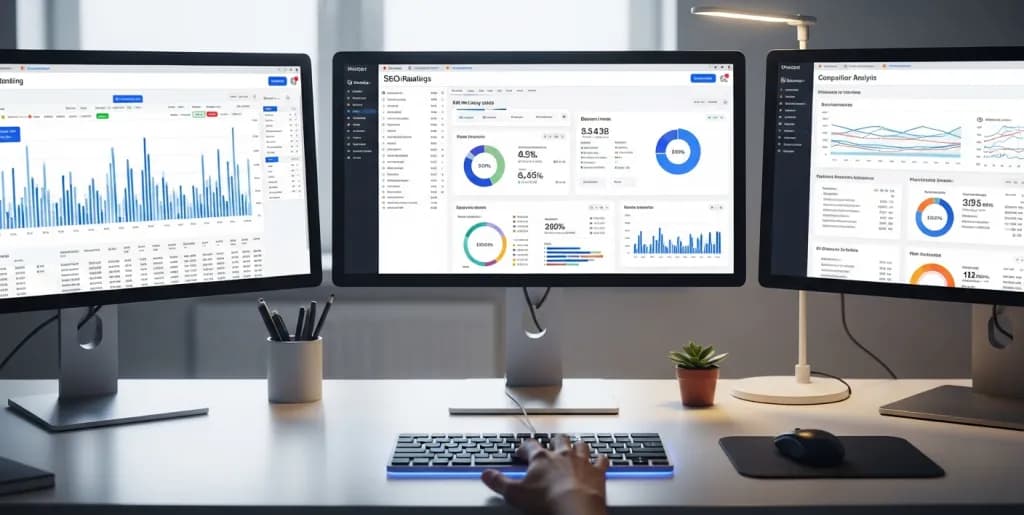
SEO automation software works best when you use it to eliminate repetitive operational work, not when you ask it to replace judgment. Good automation catches issues early, normalizes data, and surfaces priorities. Bad automation publishes weak content, creates noisy alerts, and hides strategic mistakes behind a dashboard.
This guide separates the two. Use it to decide what should be automated, what should stay human-led, and how to design SEO workflows that scale without becoming brittle.
Quick takeaways
- Automate data collection, routine audits, rank tracking, anomaly alerts, and standardized reporting.
- Keep strategy, final editorial review, link outreach, and algorithm interpretation under human ownership.
- The best automation layer reduces response time and manual repetition. It does not eliminate accountability.
Automation Scope and Boundaries
Automation in SEO isn't a magic wand; it's a powerful lever. It excels at repetitive, data-intensive, and rule-based tasks, freeing up valuable human capital. The core principle for any seo automation software is simple: if a task can be defined by a clear set of "if-then" rules and doesn't require subjective judgment, it's a candidate for automation.
Consider the old way of monitoring website health: manually clicking through pages, checking for broken links, or comparing meta descriptions against character limits. This was tedious, error-prone, and consumed countless hours. The new way involves deploying seo automation software that crawls your site, flags issues instantly, and even generates reports. This shift saves time and significantly boosts accuracy.
However, a critical boundary exists. Automation cannot replicate human creativity, strategic thinking, or nuanced decision-making. It lacks the ability to understand complex user intent beyond basic keyword matching, interpret the subtle implications of an algorithm update, or craft compelling, empathetic content that resonates deeply with an audience. Attempting to automate these areas often leads to generic outputs, missed opportunities, or even detrimental SEO outcomes.
What to Automate:
- Data collection and normalization: Pulling crawl, rank, analytics, and Search Console data into one operating layer or dashboard.
- Technical SEO Audits: Routine checks for broken links, crawl errors, site speed issues, duplicate content, missing alt tags, and schema validation.
- Rank Tracking: Daily or weekly monitoring of keyword positions across various search engines and locations.
- Performance Monitoring: Alerting for sudden drops in organic traffic, impressions, or click-through rates (CTRs) from Google Search Console or Analytics.
- Competitor Analysis: Tracking competitor keyword rankings, new content publications, and backlink acquisition patterns.
- Reporting: Generating standardized reports for stakeholders, aggregating data from multiple sources into digestible dashboards.
- On-Page Element Checks: Ensuring meta titles, descriptions, and H1s meet length requirements and contain target keywords.
What Not to Automate:
- Content strategy and final copy decisions: Original content ideas, nuanced intent analysis, differentiated messaging, and final edits for tone and credibility.
- Complex Link Building Outreach: Personalized outreach, relationship building, and negotiating link placements require human interaction and judgment. Generic automated emails often get flagged as spam.
- Algorithm Update Interpretation: Understanding the nuances of a Google algorithm update and formulating a strategic response demands expert analysis, not automated rules.
- Crisis Management: Responding to negative press, managing reputation issues, or dealing with manual penalties requires sensitive, human-led communication.
- Deep User Experience (UX) Analysis: While tools can flag technical UX issues, understanding user behavior, pain points, and psychological triggers requires qualitative analysis and empathy.
- Strategic Decision-Making: Determining long-term SEO goals, identifying new market opportunities, or pivoting strategy based on market shifts are inherently human, high-level tasks.
One client, a mid-sized SaaS company, attempted to fully automate their blog content generation using an AI writing tool without human oversight. Initially, they saw a boost in publication volume. However, within three months, their organic traffic plateaued, and engagement metrics dropped sharply. The content, while technically sound, lacked depth, unique insights, and the distinct brand voice that previously resonated with their audience. The experiment highlighted a crucial lesson: automation is a force multiplier for execution, not a substitute for strategy or creativity. They quickly reverted to a human-led content strategy, using automation only for topic ideation and basic fact-checking.
Reference Architecture (Data, Checks, Actions)
An effective SEO automation system isn't just a collection of disconnected tools. It's a structured framework, a well-oiled machine operating on three core pillars: data inputs, logical checks, and actionable outputs. Understanding this architecture is key to building robust, reliable automation workflows.
Data Inputs: The Fuel
Every automation process begins with data. This is the raw material, the information feed that tells your system what's happening. The quality and breadth of your data inputs directly impact the reliability and utility of your automation.
- Google Search Console (GSC): Provides crucial insights into search performance, crawl errors, indexing status, and core web vitals. APIs allow programmatic access to this rich dataset.
- Google Analytics (GA4): Offers detailed user behavior data, traffic sources, conversions, and engagement metrics. Essential for understanding the impact of SEO efforts beyond rankings.
- Website Crawlers (e.g., Screaming Frog, Sitebulb, Ahrefs Site Audit): These tools systematically scan your website, identifying technical issues like broken links, redirect chains, duplicate content, and missing meta tags. Many offer API access or command-line interfaces for automation.
- Rank Trackers (e.g., SEMrush, Ahrefs, SERPWatcher): Monitor keyword positions, providing daily or weekly updates on your visibility in search results.
- Backlink Tools (e.g., Ahrefs, Majestic, Moz Link Explorer): Discover new backlinks, monitor existing ones, and identify potentially toxic links.
- Content Management Systems (CMS) & E-commerce Platforms (e.g., WordPress, Shopify, Magento): Direct access to content, product data, and page structures allows for automated updates or checks against on-page SEO best practices.
- Third-Party APIs: Integration with tools like PageSpeed Insights, schema validators, or even competitor monitoring services can enrich your data inputs.
Logic & Checks: The Brain
Once you have your data, the system needs to process it. This is where the "if-then" rules come into play. Logic and checks define what constitutes an "issue" or an "opportunity" based on predefined thresholds and conditions.
- Threshold-Based Alerts: "If organic traffic drops by more than 15% week-over-week for a specific page, trigger an alert."
- Comparison Rules: "If a competitor's ranking for a target keyword improves by more than 5 positions, flag it for review." Or, "If the number of indexed pages in GSC deviates by more than 10% from the previous week, investigate."
- Pattern Recognition: "If a new set of crawl errors (e.g., 404s) appears on critical product pages, prioritize investigation."
- Compliance Checks: "If any meta description is over 160 characters or under 50 characters, add it to a review list." Or, "If a new page is published without a canonical tag, flag it."
- Data Validation: "If a product page is missing its price schema markup, report it."
These checks transform raw data into meaningful insights, highlighting where human attention is most needed. They act as the automated guardians of your SEO health.
Actions & Outputs: The Hands
The final stage is where the system does something with the processed information. Actions can range from simple notifications to initiating complex workflows in other systems.
- Notifications & Alerts: Sending emails, Slack messages, or push notifications to the relevant team members when a critical issue is detected.
- Reporting & Dashboards: Automatically updating custom dashboards (e.g., Google Data Studio, Tableau) with key performance indicators (KPIs) and issue summaries.
- Task Creation: Integrating with project management tools (e.g., Jira, Asana, Trello) to automatically create tickets for identified SEO issues, assigning them to the appropriate team member.
- Data Export: Exporting filtered data sets (e.g., a list of broken links, pages with missing H1s) into spreadsheets for further manual analysis or bulk updates.
- API Calls for Remediation (Use with Caution): In some cases, automation can directly trigger actions in other systems. For example, updating a sitemap after new pages are published, or even automatically implementing canonical tags (though this requires rigorous QA).
- Content Generation (Templated): For highly structured content like product descriptions or local business listings, automation can populate templates with data, subject to human review.
Real-world Example:
Consider a large e-commerce site. Their seo automation software architecture might look like this:
- Data Inputs: Daily crawls via Sitebulb API, hourly GSC data pulls, weekly rank tracker updates.
- Logic & Checks:
- "If Sitebulb detects more than 10 new 404 errors on product pages, AND GSC shows a drop in impressions for those pages."
- "If a key product keyword drops out of the top 10, AND a competitor's rank for that keyword increases."
- "If a new product page is published without a unique meta description or H1 tag, AND its Core Web Vitals score is below 'good'."
- Actions & Outputs:
- Send an urgent Slack notification to the technical SEO team with a link to the specific pages.
- Create a high-priority ticket in Jira for the technical SEO team, detailing the issue and affected URLs.
- Update a "Critical Issues" dashboard in Google Data Studio, highlighting the problem.
- For the missing meta description/H1, create a lower-priority task for the content team.
This structured approach ensures that automation is not just busywork but a targeted, intelligent system that drives real, measurable improvements.
Weekly and Monthly Automation Workflows
Strategic implementation of seo automation software means aligning automated tasks with your overall SEO cadence. Some checks are critical daily, others weekly, and some are best performed monthly for a comprehensive overview. This tiered approach ensures you catch issues promptly without overwhelming your team with constant alerts.
Weekly Automation Workflows: Keeping the Pulse
Weekly workflows focus on maintaining site health, monitoring performance shifts, and staying ahead of immediate issues. These are your quick, regular check-ups.
- Technical Health Scan:
- Automate: Schedule a weekly crawl of your entire website (or critical sections) using a tool like Screaming Frog or Sitebulb.
- Checks: Focus on new 404 errors, broken internal/external links, redirect chains, missing or duplicate meta tags, and basic schema validation.
- Output: Generate a summary report, and automatically create tasks in your project management system for any critical issues found (e.g., "Fix 5 new broken links on product pages").
- Performance Anomaly Detection:
- Automate: Connect your GSC and GA4 data to a reporting tool or custom script.
- Checks: Monitor for significant week-over-week drops (e.g., >10%) in organic clicks, impressions, or conversions for key landing pages or site sections. Look for sudden changes in index coverage.
- Output: Send an email alert to the SEO team detailing the affected URLs and metrics.
- Keyword Rank & Competitor Monitoring:
- Automate: Use a rank tracking platform to pull weekly position updates for your target keywords. Configure it to track key competitors as well.
- Checks: Identify keywords that have dropped significantly (e.g., >5 positions) or moved out of the top 10/20. Also, flag any competitor keywords that have seen a major gain.
- Output: Generate a weekly ranking report. Create a review task for keywords that require immediate attention.
- Core Web Vitals Spot Checks:
- Automate: Use VibeMarketing to monitor a sample of critical pages.
- Checks: Look for any significant degradation in Largest Contentful Paint (LCP), Cumulative Layout Shift (CLS), or Interaction to Next Paint (INP) scores.
- Output: Alert the development team if performance metrics worsen for key pages.
Weekly Mini-Checklist:
- Automated crawl for 404s and broken links.
- GSC/GA4 anomaly detection for traffic/impressions.
- Weekly rank tracking and competitor position changes.
- Core Web Vitals performance monitoring for critical pages.
Monthly Automation Workflows: Strategic Overviews
Monthly workflows provide a broader, more strategic view of your SEO performance. These tasks are often more comprehensive and feed into longer-term planning.
- Comprehensive Technical Audit:
- Automate: Schedule a full, deep crawl of your entire website. This goes beyond weekly checks, looking for deeper issues like complex redirect chains, orphaned pages, index bloat, and advanced schema validation.
- Checks: Analyze crawl budget efficiency, identify potential canonicalization issues, and review internal linking structures.
- Output: A detailed technical audit report. Prioritized list of issues for the development team, often accompanied by a meeting to discuss findings.
- Content Performance Review:
- Automate: Use GSC and GA4 data to identify underperforming content pieces (low CTR, high bounce rate, low average position despite high impressions). Also, flag content that hasn't been updated in a long time.
- Checks: Compare content performance against internal benchmarks or competitor content. Identify content gaps based on keyword research tools.
- Output: A content optimization report, suggesting articles for updates, consolidation, or removal. Create tasks for the content team.
- Backlink Profile Monitoring:
- Automate: Use a backlink analysis tool to pull monthly updates on your backlink profile.
- Checks: Identify new backlinks, lost backlinks, and potentially toxic or spammy links. Monitor anchor text distribution.
- Output: A backlink report. Alerts for any suspicious link activity or significant drops in referring domains.
- Competitive Landscape Analysis:
- Automate: Pull data from various competitor analysis tools (e.g., SEMrush, Ahrefs) on new content, keyword targeting shifts, and estimated traffic.
- Checks: Identify new market entrants, shifts in SERP features for key terms, and emerging content trends among competitors.
- Output: A competitive analysis summary, informing content strategy and keyword targeting adjustments.
- Reporting & Stakeholder Dashboards:
- Automate: Consolidate all relevant SEO data (rankings, traffic, conversions, technical health) into a comprehensive monthly report or executive dashboard.
- Checks: Ensure data accuracy and consistency across all sources.
- Output: A polished, presentation-ready report for management and clients, highlighting progress, challenges, and future plans.
Monthly Mini-Checklist:
- Full site technical audit.
- Content performance and update recommendations.
- Backlink profile health and new link identification.
- Comprehensive competitive landscape review.
- Automated monthly performance reports for stakeholders.
By establishing these routine workflows, you transform reactive SEO into a proactive, data-driven discipline. You're not just fixing problems; you're anticipating them and identifying opportunities for growth, all while saving countless hours of manual effort.
Tool Selection Rubric
Choosing the right seo automation software is a critical decision. The market is saturated with options, each promising to be the ultimate solution. A structured rubric helps you evaluate tools against your specific needs, ensuring your investment yields maximum return. Don't just pick the flashiest tool; pick the one that fits your architecture, team, and budget.
Here are the key criteria to consider:
1. Integration Capabilities
Your automation tools shouldn't operate in silos. They need to communicate seamlessly with your existing tech stack.
- APIs & Webhooks: Does the tool offer robust APIs for data input and output? Can it send or receive webhooks to trigger actions in other systems (e.g., Slack, Jira, Google Sheets)?
- Native Integrations: Does it have pre-built connectors for essential platforms like Google Search Console, Google Analytics, WordPress, Shopify, or popular project management tools?
- Data Export Options: Can you easily export data in formats like CSV, JSON, or XML for further analysis in other tools or custom scripts?
2. Scalability
Your SEO needs will evolve. Your automation solution should be able to grow with you, from a small project to a large enterprise.
- Volume Handling: Can it handle the size of your website (number of pages, keywords, backlinks)? What are the limits on crawls, queries, or data storage?
- User Management: If you have a team, does it support multiple users with different access levels?
- Feature Expansion: Does the vendor regularly update the tool with new features and adapt to changes in the SEO landscape?
3. Customization & Flexibility
Generic solutions often fall short. The ability to tailor the tool to your unique requirements is paramount.
- Custom Rules & Alerts: Can you define your own "if-then" logic, thresholds, and alert conditions?
- Custom Reporting: Can you build custom dashboards and reports that display the metrics most relevant to your business?
- Scripting Capabilities: Does it allow for custom scripts (e.g., Python, JavaScript) to extend its functionality or connect to less common data sources?
- White-labeling: Is it possible to brand reports for clients?
4. Usability & Learning Curve
A powerful tool is useless if your team can't operate it efficiently.
- Intuitive Interface: Is the user interface (UI) clean, logical, and easy to navigate?
- Documentation & Tutorials: Is there comprehensive documentation, video tutorials, and a knowledge base to help users get started and troubleshoot?
- Ease of Setup: How quickly can you set up initial crawls, reports, and alerts?
5. Cost-Effectiveness & ROI
The price tag is just one part of the equation. Consider the total cost of ownership and the potential return.
- Pricing Model: Is it subscription-based, pay-per-use, or tiered? Does it align with your budget and usage patterns?
- Hidden Costs: Are there extra charges for API access, additional users, or premium support?
- Value Proposition: Does the tool offer features that genuinely save time, reduce errors, or improve SEO performance in a way that justifies its cost?
6. Support & Community
Even the best tools encounter issues. Reliable support is crucial.
- Customer Support: What are the response times and channels (email, chat, phone)? Is the support team knowledgeable?
- Community: Is there an active user community, forums, or social media groups where you can find answers and share insights?
- Training: Does the vendor offer training or webinars to help you maximize your use of the tool?
7. Reliability & Performance
Automation must be dependable.
- Uptime & Stability: What is the tool's track record for uptime and stability?
- Data Accuracy: How reliable is the data it collects and processes? Are there known limitations or potential inaccuracies?
- Speed: How quickly does it perform crawls, process data, and generate reports?
Tool Selection Rubric Example Table:
| Feature/Criterion | Tool A (e.g., Screaming Frog) | Tool B (e.g., Ahrefs) | Tool C (e.g., Custom Python Script) |
|---|---|---|---|
| Integration | API, Google Sheets | API, GSC/GA native, Data Studio | Highly customizable, any API |
| Scalability | Good for single sites/projects | Excellent for large sites/agencies | Unlimited (depends on infrastructure) |
| Customization | Moderate (regex, custom extraction) | Moderate (custom reports, alerts) | High (full control) |
| Usability | Moderate (desktop app, some learning) | High (web-based, intuitive) | Low (requires coding expertise) |
| Cost-Effectiveness | One-time license (free basic) | Subscription (tiered) | Free (open source) + dev time |
| Support/Community | Excellent docs, active community | Excellent docs, support, community | Stack Overflow, developer forums |
| Reliability | High | High | Depends on developer quality |
By systematically evaluating each potential seo automation software against these criteria, you can make an informed decision that aligns with your strategic goals and operational realities.
QA and Risk Controls
Automation is about efficiency, but unchecked automation can introduce significant risks. Imagine an automated script that accidentally de-indexes your entire site or pushes incorrect canonical tags. The consequences can be devastating. Therefore, robust Quality Assurance (QA) and risk controls are non-negotiable. Automation requires human oversight, not replacement.
1. Regular Audits of Automated Processes
Don't assume your automation is always working perfectly. Algorithms change, website structures evolve, and even the best scripts can develop unforeseen bugs.
- Review Rules & Thresholds: Periodically (e.g., quarterly) review the logic and thresholds built into your automation. Are they still relevant? Are they too aggressive or too lenient? For instance, if your site's average page load time has improved, your "slow page" alert threshold might need adjustment.
- Spot Checks on Outputs: Manually verify a sample of the issues or reports generated by your automation. Do the broken links identified by the tool actually exist? Are the suggested content updates truly necessary?
- Performance Monitoring of Automation: Track the performance of your automation itself. Is it running on schedule? Are there any errors in its execution logs?
2. Implement Alert Systems, Not Just Action Systems
The goal of automation should often be to alert a human, not always to act autonomously.
- Tiered Alerts: Implement a system where critical issues trigger immediate, high-priority alerts (e.g., Slack, SMS), while less urgent issues generate daily or weekly summary reports.
- Human-in-the-Loop: For any automated action that directly modifies your website (e.g., updating meta tags, canonicals, sitemaps), ensure there's a mandatory human review and approval step before deployment. This is crucial.
3. Utilize Staging Environments
Never deploy new automation scripts or significant changes to existing ones directly to your live production environment.
- Test on Staging: Always test new automation scripts, rules, or integrations on a staging or development environment that mirrors your live site. This allows you to identify bugs and unintended consequences without impacting your live SEO performance.
- Simulate Scenarios: Run various test cases, including edge cases, to ensure the automation behaves as expected under different conditions.
4. Version Control for Scripts and Rules
Treat your automation scripts and rule sets like code.
- Git Repository: Store all custom scripts and configuration files in a version control system like Git. This allows you to track changes, revert to previous versions if issues arise, and collaborate with a team.
- Documentation: Document every script and rule: what it does, why it was created, its dependencies, and who is responsible for it. This is vital for continuity and troubleshooting.
5. The "Kill Switch" Protocol
In the event of a catastrophic failure or unintended behavior, you need an immediate way to halt all automated processes.
- Emergency Stop: Design your automation architecture with a clear, easily accessible "kill switch" or mechanism to pause/disable all automated actions. This could be a simple toggle in a dashboard, or a command-line instruction to stop a script.
- Rollback Plan: Have a predefined plan for how to revert any automated changes quickly. This might involve restoring a previous version of your website from a backup or running a counter-script.
Real-world Case:
A digital marketing agency, "GrowthForge," developed an automated script to identify and update outdated publication dates on blog posts to improve freshness signals. The script was designed to update the datePublished schema and the visible date on the page. During testing on a staging environment, they discovered a flaw: the script was incorrectly identifying the last modified date as the publication date for some articles, causing newer content to appear older. This would have been disastrous for their clients' SEO. Because they had a robust QA process, including a staging environment and manual spot checks, they caught the error before it went live. They then implemented a "kill switch" for the script and refined the logic to ensure only the true publication date was updated, or that a "last updated" date was added instead. This incident underscored the absolute necessity of rigorous testing and human oversight, even for seemingly simple tasks.
By embedding these QA and risk controls into your automation strategy, you transform a potential liability into a reliable, high-performing asset. Automation should augment human intelligence, not replace it blindly.
ROI Model with Baseline/After Metrics
Justifying the investment in seo automation software requires a clear understanding of its return on investment (ROI). This isn't just about saving money; it's about reallocating resources to higher-impact activities and achieving better SEO outcomes. A robust ROI model compares baseline metrics (before automation) with post-automation results.
Establishing Baseline Metrics
Before you implement any automation, you need a clear snapshot of your current state. This provides the benchmark against which you'll measure success.
- Time Spent on Manual Tasks: Quantify the hours your team currently spends on repetitive SEO tasks. For example:
- Technical audits: X hours/month
- Rank tracking & reporting: Y hours/month
- Broken link checks: Z hours/month
- Total manual hours: X + Y + Z = Baseline Time.
- Error Rate: Estimate the frequency of human errors in manual tasks. This is harder to quantify but can be inferred from issues caught in subsequent manual reviews.
- Key SEO Performance Indicators (KPIs):
- Organic Traffic: Monthly unique visitors, sessions, page views.
- Keyword Rankings: Average position for target keywords, number of keywords in top 3/10/20.
- Conversions/Leads: Organic conversion rate, number of organic leads/sales.
- Crawl Budget Efficiency: (If applicable) Time spent by bots on non-critical pages.
- Core Web Vitals: INP, LCP, CLS scores.
Post-Automation Metrics: Measuring the Impact
After implementing seo automation software, you'll track the same metrics to demonstrate improvement.
- Quantifying Time Savings:
- Compare the new time spent on the automated tasks (now primarily review and action) against the baseline manual hours.
- Example: If a task previously took 10 hours manually and now takes 2 hours for review, that's 8 hours saved.
- Monetize Time Savings: Multiply the saved hours by the average hourly rate of the SEO professional or team member.
- Formula: (Baseline Time - Post-Automation Time) * Hourly Rate = Monetary Savings.
- Quantifying Performance Improvements:
- Increased Organic Traffic: Attribute any increases in organic traffic, impressions, or CTR to the more efficient identification and resolution of SEO issues.
- Improved Rankings: Track improvements in keyword rankings, especially for high-value terms, due to faster issue resolution or more consistent optimization.
- Higher Conversions: If the automation leads to better user experience or more relevant content, track the impact on organic conversion rates.
- Reduced Error Rates: Fewer errors mean less time spent fixing mistakes, leading to a more stable and efficient SEO operation.
- Faster Issue Resolution: Measure the time it takes from issue detection to resolution. Automation significantly shortens this cycle.
Building Your ROI Model
A simple ROI model can be structured as follows:
- Cost of Automation:
- Software subscriptions (annual/monthly)
- Development time for custom scripts/integrations (if applicable)
- Training costs
- Maintenance overhead
- Total Automation Cost (TAC)
- Benefits of Automation:
- Monetary value of time saved (from above)
- Monetary value of increased organic revenue (e.g., 5% increase in organic sales due to better rankings/UX)
- Monetary value of reduced error-related costs (e.g., avoiding a de-indexing penalty)
- Total Automation Benefit (TAB)
- ROI Calculation:
- Formula: ((TAB - TAC) / TAC) * 100 = ROI %
Real Case: GadgetHub's Technical Audit Automation
Consider a mid-sized e-commerce site, "GadgetHub." Before implementing specific seo automation software for technical audits, their team spent 15 hours monthly manually checking for broken links, duplicate content, and slow pages. After deploying a solution that automated these checks and generated prioritized reports, this time dropped to 3 hours for review and action.
- Baseline Time: 15 hours/month
- Post-Automation Time: 3 hours/month
- Time Saved: 12 hours/month
- Hourly Rate (SEO Specialist): $50/hour
- Monetary Savings (Time): 12 hours * $50/hour = $600/month
Beyond time, the automated system caught critical crawl budget issues they'd missed, which were quickly resolved. This led to a 7% increase in organic traffic to key product pages within three months, translating to an additional $2,000 in monthly organic revenue.
- Example Automation Cost Assumption: $100/month
- Total Automation Cost (TAC): $100/month
- Total Automation Benefit (TAB): $600 (time saved) + $2,000 (revenue increase) = $2,600/month
- Monthly ROI: (($2,600 - $100) / $100) * 100 = 2500%
This demonstrates a clear, quantifiable return on investment. The ROI model provides compelling evidence to stakeholders, showcasing not just efficiency gains but also direct contributions to the bottom line. It transforms automation from a technical expenditure into a strategic business advantage.
Related Guides
- LLM SEO Tools for AI-First Workflows
- SEO Software Tools for Agencies (Full-Stack Platforms)
- Crawl Budget
- Commercial Intent Keywords
- Content Chunking
- Keyword Clustering